
You haven't signed in yet, you can have a better experience after signing in
*Please complete the payment within {{receiveCouponInfo.expire_at}}Previous use*
You haven't signed in yet, you can have a better experience after signing in



Activity Rules
1、Activity time:{{ info.groupon.start_at }} ~ {{ info.groupon.end_at }}。
1、Activity time:cease when sold out。
2、Validity period of the Group Buying:{{ info.groupon.expire_days * 24 }} hours。
3、Number of Group Buying:{{ info.groupon.need_count }}x。
Please Pay Attention
1、Teamwork process: Join/initiate a Group Buying and make a successful payment - Within the validity period, the number of team members meets the activity requirements - Group Buying succeeded!
2、If the number of participants cannot be met within the valid period, the group will fail, and the paid amount will be refunded in the original way.
3、The number of people required and the time of the event may vary among different products. Please pay attention to the rules of the event.
Default Folder X allows you to quickly access your files and folders in every application.
Efficient work
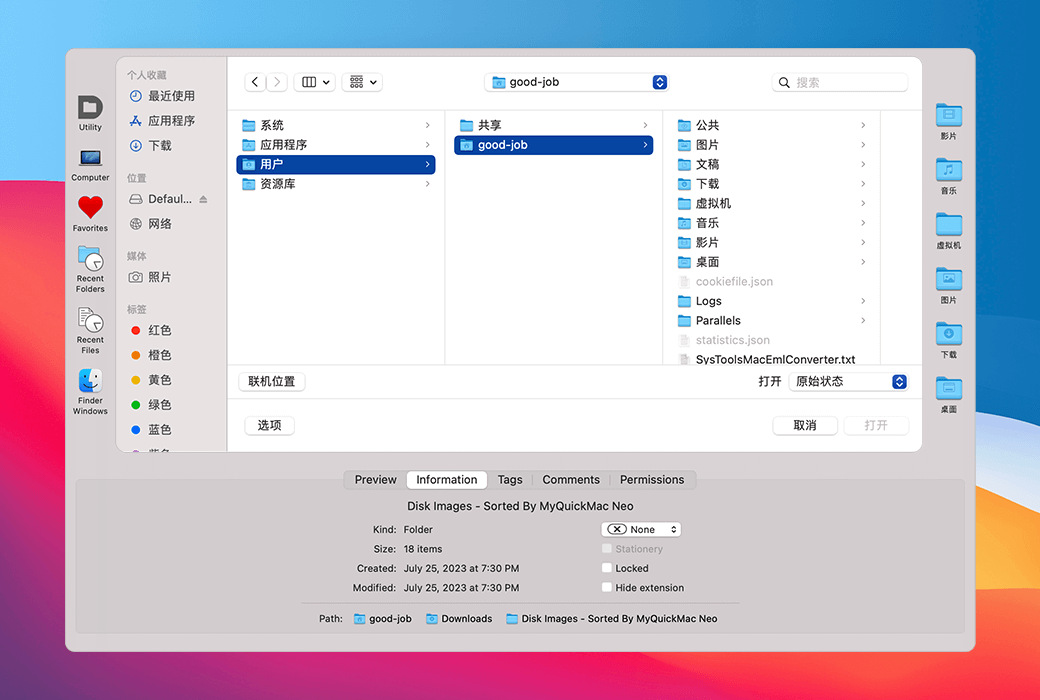
Default Folder X enhances the "Open" and "Save" dialog boxes in all applications, so you can
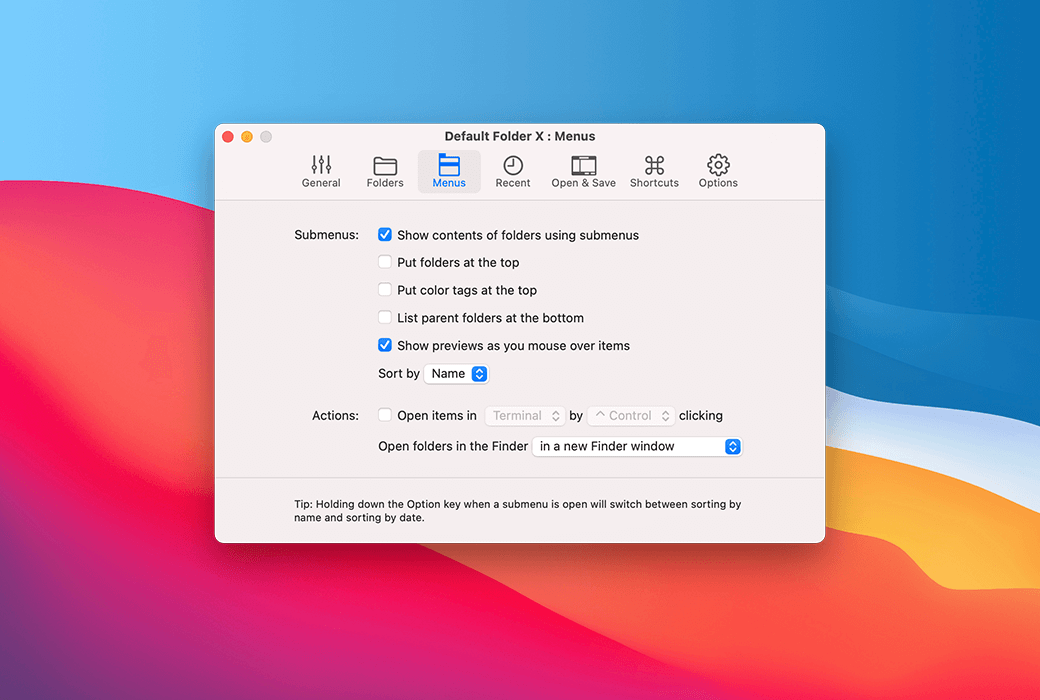
Quickly browse folders with hierarchical menus that expand when you hover over them.
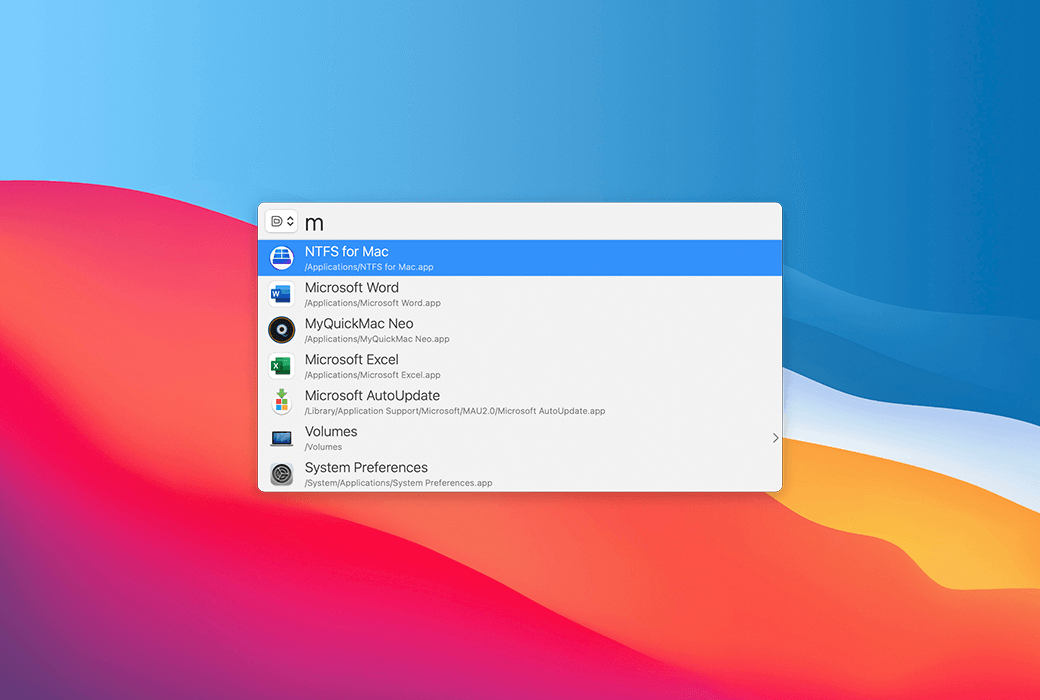
Enter a few characters of the file or folder name to open it in the file dialog box or "Finder".
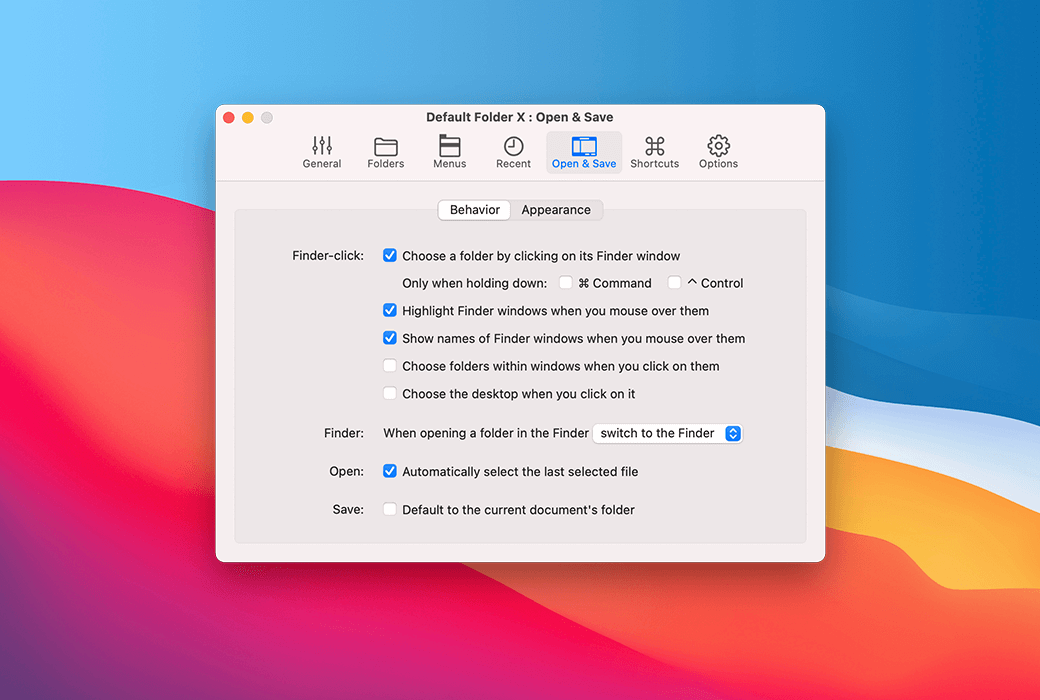
Do you need to save the file to the folder you opened in Finder? Just click on the Finder window!
Faster in 'Visiting'
The default folder X is also available in Finder, so you can
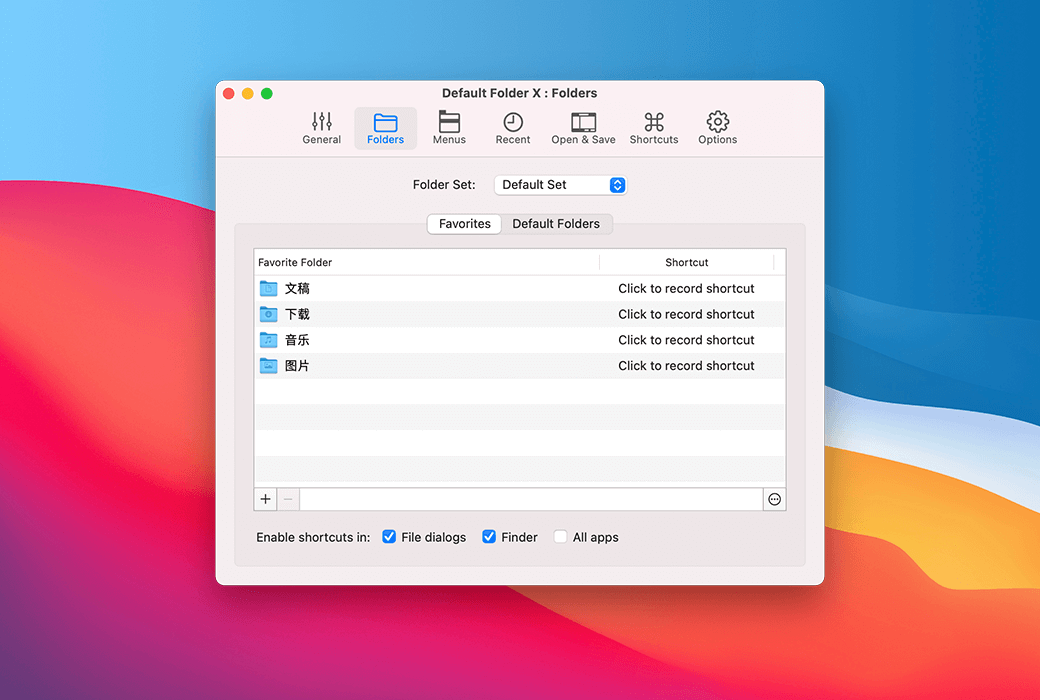
Quickly access all your recent and favorite items using customizable menus.
Drag the project to the drawer below the "Finder" window for easy access in the future.
Drag the projects onto the menu bar icon of DFX, and then move them directly to the folder through the menu.
Time saving function
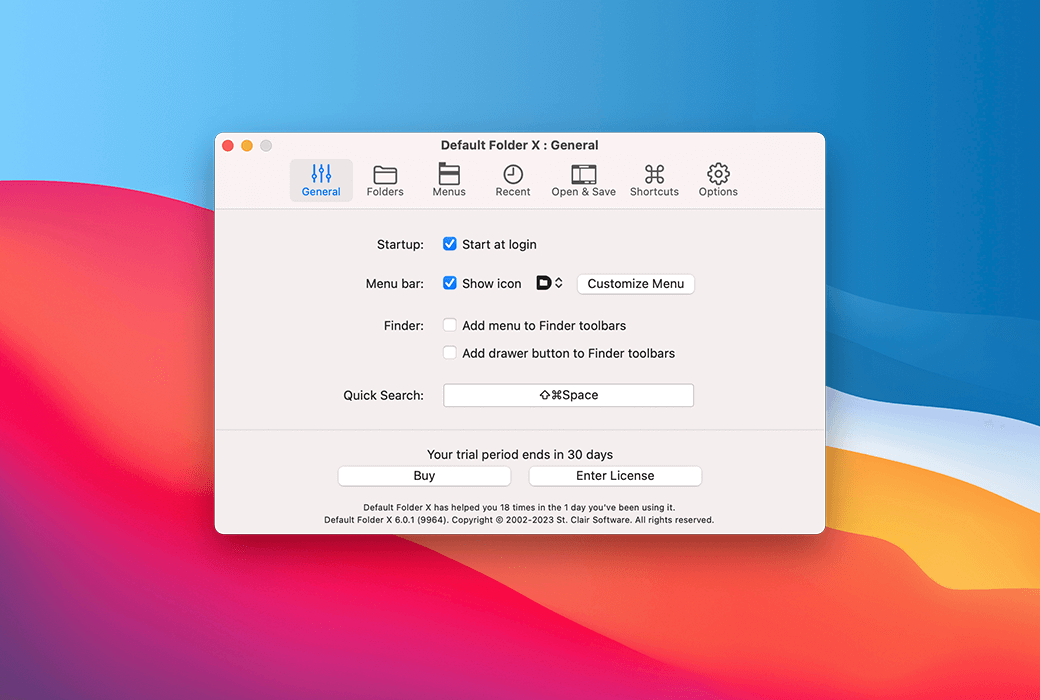
Access your recent, favorite, and open folders from DFX's toolbar and menu bar icons. Layered pop-up menus allow you to quickly browse folders to access files.
Press Command+Shift+Space to pop up the "Quick Search" window, and then type a few letters of the file, folder, or application name. DFX will immediately retrieve the most recently used projects.
DFX allows you to open or save to any Finder window with just one click. It also allows you to obtain information about, copy, rename, and delete existing files, placing the powerful features of Finder in every "open" and "save" dialog box.
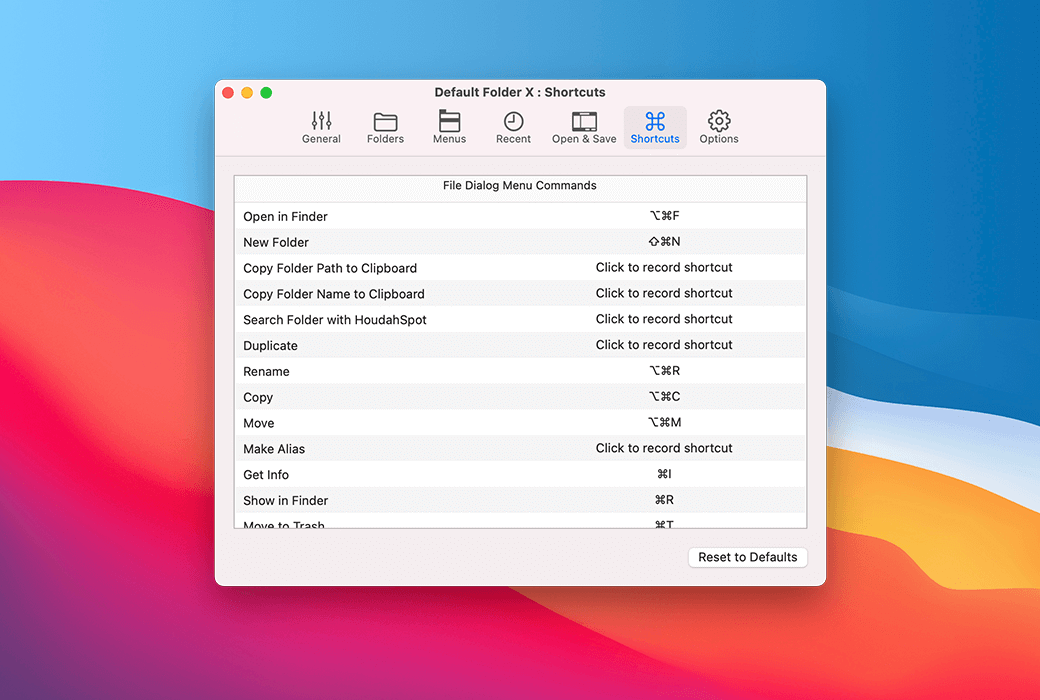
Use the keyboard shortcuts of your favorite folder to quickly get the location. Or jump to the recently used folder and open the Finder window by pressing the key. The shortcuts for DFX are fully configurable.
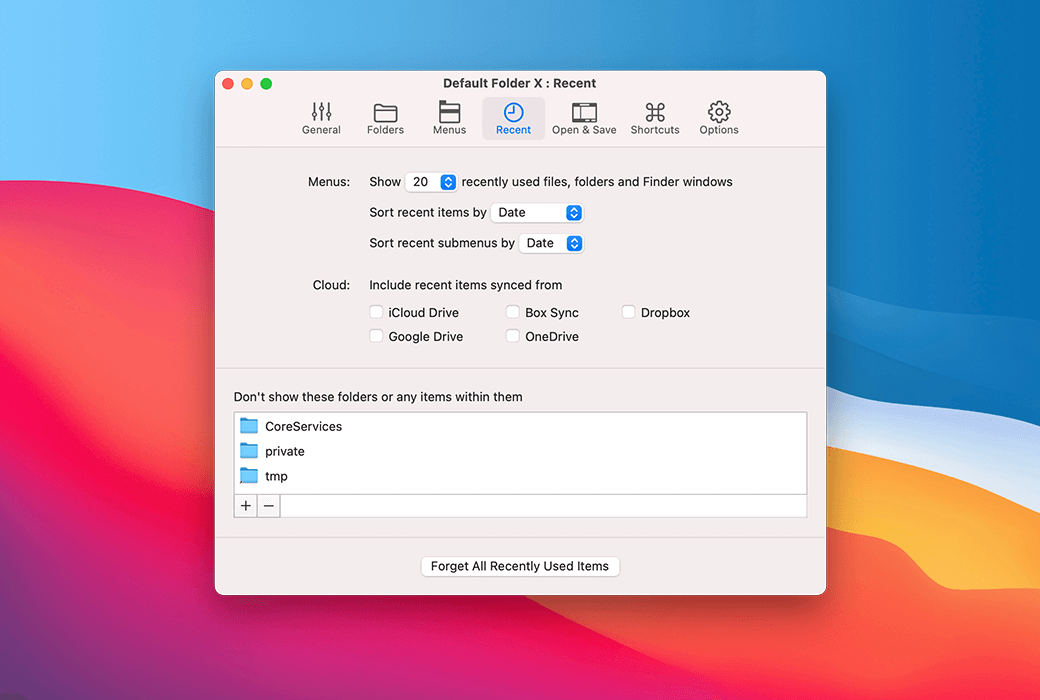
To help you quickly return to the folders and files you recently used, DFX will remember them for you. It will even reselect the last file you opened. With DFX, you will never forget where you put your things.
If you frequently save content in the same folder, DFX can remember that folder for you. Alternatively, you can set it as the default folder for the application so that it is located in the correct folder from the beginning.
Official website:https://www.stclairsoft.com/DefaultFolderX/index.html
Download Center:https://defaultolderx.apsgo.cn
Backup Download:N/A
Delivery time:Manual online processing
Operating platform:macOS
Interface language:Supports English interface display, currently not available in Chinese.
Update instructions:Support minor version upgrades and updates. For example: v6. x
Pre purchase trial:Free trial before purchase.
How to receive the goods:After purchase, the activation information will be sent to the email address at the time of placing the order, and the corresponding product activation code can be viewed in the personal center, My Orders.
Number of devices:Authorize to a single user who can install, activate, and use on all their devices.
Replacing the computer:Uninstall the original computer and activate the new computer.
Activation guidance:To be added.
Special instructions:To be added.
Reference materials:https://stclairsoft.com/DefaultFolderX/faq.html

Any question

This is actually not a problem with the Default Folder, but rather an issue with the system not correctly remembering the size of the dialog box.
To adjust the size of the dialog box, hold down the Shift key and click on any edge of the file dialog box with the mouse (click on the actual edge of the dialog box, not the edge of the Default Folder X border), and then drag it to the center of the dialog box.
This will adjust the size of the dialog box in all dimensions, even if part of the content is off-screen. Once you have adjusted the size of the dialog box, macOS should remember this size and use it when calling the same dialog box within the same application.
Note that the size of the dialog box is remembered by each individual application, so if you encounter this issue in multiple applications, you will need to adjust the size of the dialog box in each application separately.
If the system fails to correctly remember the size of the file dialog box after you have adjusted it (sometimes it does not remember the size if it is incorrect), you can use the Default Folder X to overwrite the size and force it to revert to the size you have set.
The operation method is to hold down the Option key and select "Settings" from the menu of the Default Folder X in the menu bar.
In the "Additional Settings" table that appears, turn on "Remember File Dialog Box Size", and then click "OK".